Pages

Tuesday, September 6, 2016

How to Rip Blu-ray ISO image to H.264 MP4/MOV/MKV

Looking for ways to play Blu-ray ISO image on proable devices? This guide is everything you need to handle Blu-ray ISO image playback on computer or protable devices.


These years, I backed up a lot of classic Blu-ray movies into ISO format for keeping from damage. But now, I need to transfer Blu-ray ISO movie to my portable devices like iPad and Surface RT. Digging on Google, I found that I should convert Blu-ray ISO image to H.264 MP4 first before transferring. If you also have such demands, follow this article.

To convert Blu-ray ISO image to H.264 MP4/MOV/MKV, you need a professional tool like Brorsoft Blu-ray Ripper.

With it, you can effortlessly convert DVD/BD ISO files to H.264 MP4/MKV/MOV, etc. for using in any regular players, video editors or online websites. In addition, you can edit your ISO files by cropping, trimming, adding watermarks, etc. with the built-in free editor. If you're using a Mac, Brorsoft Blu-ray Ripper for Mac is your first choice. Now download the right version and follow the step-by-step guide below to finish your task.

Convert Blu-ray ISO image to H.264 MP4/MOV/MKV

Step One: After downloading, install and run Blu-ray ISO converter. Then click the "Load Blu-ray" button to add the source ISO files to the program.


Step Two: Select and custom output format. In "Common Video" column, you can select H.264 MP4, MOV, MKV as the output format.


Step Three: Tap the button "Convert" to start conversion from Blu-ray ISO image to H.264 MP4/AVI/MKV/MPG/WMV, and more.

After conversion, you can freely play the converted Blu-ray ISO files with players on computer or transfer to HD Media Players, mobile devices for great convenience.

Read More:

How to Add Blu-ray /DVD movies to iTunes

Friday, September 2, 2016

How to Rip DVD for Sony Vegas editing

This article will teach you how to freely edit DVD files in Vegas without any issue.


"What formats & containers are the best for ripping DVD to and Editing in Sony Vegas? I'm doing a project with large number of clips from various movies and I want to make sure I use the right format and container."

Sony Vegas is very powerful and supports a wide range of video formats like WMV, MOV, MP4, MPG, etc. it receives popularity around the world. However, Sony Vegas doesn't support DVD importing. That means if you want to import DVD to Sony Vegas Pro for editing, you need to get a third party software to help you rip DVD to Sony Vegas Pro supported video formats, like MPEG-2.

To achieve the goal, you can use Brorsoft DVD Ripper, a professional DVD ripping app to rip DVD to almost any video and audio format like MKV, MOV, AVI, WMV, MP4, MOV, FLV, MP3, AAC, WMA, WAV, etc. easily and fast bypassing the DVD copy protection. Now, download the software and follow the guide below to start ripping process.

Guide: Rip DVD movies for Sony Vegas editing

Step One. Add DVD movie

Run the software and click "Load DVD" to add the DVD files you want to rip. After DVD has been loaded, you can select subtitles, choose audio tracks, preview DVD as you like. This professional DVD tool can support DVD folder, ISO and IFO files as well.


Step Two. Choose the output format

Click "Format" bar to determine output format. Follow "Adobe Premiere/Sony Vegas" and select "MPEG-2(*.mpg)" as the output format. Besides, you can also choose WMV (VC-1) (*.wmv) if you want to get a relatively smaller output file.


Step Three. Adjust output parameters

You can click "Settings" button to adjust output parameters, including the Bitrate of Video and Audio, the Codec of Video and Audio, Video Size, Sample Rate, Frame Rate, Audio Channels, etc.

Step Four. Start converting DVD to Sony Vegas

When all is OK, simply click "Convert" to begin the ripping. The conversion will finish soon if your DVD movie is not too large. After the conversion finished, you can get the videos highly compatible with Sony Vegas Pro. Just Launch Sony Vegas and import the converted videos to it and enjoy home video editing!

Additional Tip:

If you wanna a package product that not only can support DVD movies, but also can deal with Blu-ray discs as well as common videos including MOV, MTS, MXF, MKV, MP4 .etc, Brorsoft Blu-ray Video Converter Ultimate (Mac version) is designed for you. It is just such an all-in-one multimedia toolkit to aid you in converting videos and DVD/Blu-ray to any format like MOV, AVI, M4V, WMV, MP4, MPEG, and rip Blu-ray/DVD to fit your mobile devices like iPhone, iPad and iPod and more with fast speed and zero quality loss. Besides, you can also effortlessly full disc backup or directly copy main movie from your BD/DVD discs.

Read More:


Tuesday, August 30, 2016

DVD Shrink Alternative to backup DVD files

Looking for a best DVD Shrink Alternative to backup DVD files? This article will outline some tools for you to choose. Keep reading.


Many users like to use DVD Shrink to make a backup copy of DVD video disc. The most important factor is that DVD Shrink compresses DVDs efficiently, effortlessly and effectively. In fact, there are some DVD Shrink alternatives that can help you copy commercial DVD movies. Just get the one you like.

1. DVD Shrink alternatives For Windows (Windows 10 included):

Handbrake: Rip DVDs for playback on iPhone, iPad, iPod, PSP, Apple TV, etc. But it's a pity that it can not support protected DVDs.

Format Factory: Able to convert DVD to a number of video formats for some portable devices like mobile. Moreover, it provides some basic editing features.

2. DVD Shrink Alternatives for Mac:

MacTheRipper: It can remove DVD CSS encryption and rip DVD movie into VOB format.

3. Best DVD Shrink Alternative:

The best DVD Shrink Alternative program I can recommend for ripping/copying DVDs is Brorsoft DVD Ripper. It is a powerful yet easy-to-use DVD copier to copy and backup all DVD movies to DVD disc in 1:1 ratio, or save DVD main movies to hard drive. Besides, you can also rip and convert commercial DVDs to common video MP4, M4V, MOV, FLV, WMV, AVI, MKV, DivX, XviD, etc by removing CSS, RC and RCE protection. If you are a Mac user, Brorsoft DVD Ripper for Mac is your first choice.


Read More:

Offer you a best MPEG Streamclip Alternative

Friday, August 26, 2016

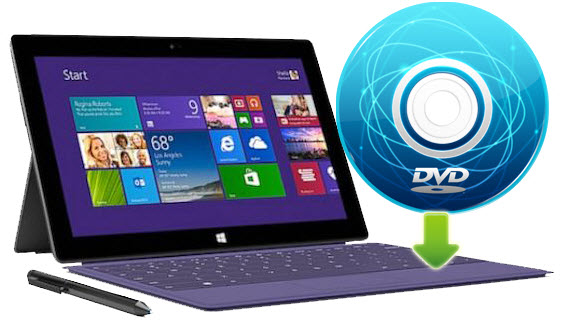
Play DVD movies on Surface Pro 3

How to copy DVD to Surface Pro 3 tablet? The best Surface Pro 3 DVD Ripper will help you transfer and play DVD movies on Surface Pro 3.


Many users post questions on Surface forum about how to play/enjoy DVD movies on Surface Pro 3. In fact, the answer is much simple. In this article, I will tell you how to put DVD movies on Surface Pro 3 freely.

Obviously, the Surface Pro does not have the specific hardware needed to insert DVDs. To get your Surface Pro to actually play DVDs discs is to install software that will actually help you rip DVD into Surface Pro 3 friendly format like MP4. Brorsoft DVD Ripper is a good choice for ripping DVD movies to Surface Pro 3 compatible video files with fast ripping speed and excellent output video quality. If you are using a Mac, please turn to the equivalent Mac version Brorsoft DVD Riper for Mac to copy DVD to Surface Pro 3 tablet on Mac OS X.

Guide: How to Copy DVD movies on Surface Pro 3

One: Run the best DVD to Surface Ripper and insert the disc into the DVD room, click "Load" disc button to import the file into the program. This program also supports DVD folder, ISO or IFO files.


Two: Click on the pull down menu of "Format", and select "Windows > Microsoft Surface Windows RT/Pro H.264 Video (*.mp4)" as target format. The output videos could fit on original Surface RT/Pro, Surface Pro 2 and Surface Pro 3 perfectly. If you want, you can then click "Settings" to adjust the video parameters manually.


Three: Finally, click Convert on the main interface to start converting your DVD movies to Surface Pro 3 playable video files. When the conversion finishes, click Open to get the ripped videos and then put them to your Surface pro 3 tablet for enjoy on the go.

Read More:

Tuesday, August 23, 2016

Rip and Stream DVD movie on Amazon Fire TV

Wanna transfer DVD movie to Amazon Fire TV for entertainment? This article will teach you how to play DVD movie on Amazon Fire TV without any limition.


"My FireTV will hopefully arrive next week. I have a USB BR/DVD-drive lying around, which I want to use with the FireTV. Will I be able to play DVDs from the FireTV?"

Of course, you can stream online audio/video content to your local HDTV, eg. Netflix, Amazon Instant Video, Hulu Plus, YouTube, and HBO GO to Amazon Fire TV connected HDTV for instant viewing. However, it is still difficult to play DVD movie on Amazon Fire TV directly.

According to its specs, it shows that Amazon Fire TV video format is limited to H.263, H.264, MPEG4-SP and VC1. To get DVD files onto Amazon Fire TV for streaming and playing correctly, you need to find a DVD ripping tool and then convert DVD to Amazon Fire TV readable format like H.264 MP4.

What I used is Brorsoft DVD Ripper. With it, I can rip and convert DVD to Fire TV with the best quality. It enables you to convert DVD to almost all regular video formats like MP4, MOV, MKV, FLV, WMV, AVI, etc. and even extract MP3, WMA, FLAC, OGG, etc. audio from DVD movies. If you are a Mac user, pls turn to Brorsoft DVD Ripper for Mac. Now, download the software and start ripping.

How to Copy DVD movie on Amazon Fire TV

One: Run the best DVD to Amazon Fire TV and insert the disc into the DVD room, click "Load" disc button to import the file into the program. This program also supports DVD folder, ISO or IFO files.


Two: Click Format bar and choose MP4 from Common Video, which can be recognized by Amazon Fire TV perfectly.


Three: Finally, tap Convert on the main interface to start converting your DVD movies to Amazon Fire TV playable video files. After conversion, get the ripped videos under "Open" panel and then put them to your Amazon Fire TV for enjoy on the go.

Read More:

Copy DVD movies on Galaxy Tab S3 9.7/8.0

Friday, August 19, 2016

Best DVD ISO Converter-Convert ISO to MP4 freely

Wanna know which is the best DVD ISO Converter for encoding ISO files into common video formats like MP4, MKV, AVI, MOV .etc? This article will discuss what feature a best DVD ISO Converter should have.

An ISO image file contains the backup of a DVD movie with all the VOB files. Many users are eager to get a first-rated ISO file converter to compress/convert the space-consuming ISO files to more friendly formats like MP4, AVI, MOV, etc. or to digitalize the piled discs to ISO image files. In this article, you will offer you a best DVD ISO Converter to convert DVD ISO file to other formats.

There are plently of software optimons avaliable on the market that will do the job for you. But I think as a best DVD ISO Converter, it should have below features.

Features of a top DVD ISO Converter:

1. Act as an ISO file converter fully compatible with Windows 10, 8, 8.1, 7, Vista, XP and Mac OS X (10.6 – 10.11).
2. 1:1 fast rip/convert almost all (copy protected) DVD ISO image file with intact videos audios and subtitles
3. Convert (encrypted) ISO files to MP4, AVI, WMV, H.264, MPEG, MOV, FLV, M4V, M2TS and many more HD/SD video formats.
4. Convert ISO image files to PC, Mac, iPhone 6S/6, iPad Pro/Air/Mini, Android Samsung, HTC and many other popular devices.
5. Compress ISO files to YouTube, Facebook, Vimeo and other Web video profiles.

According to countless tests and users' feedback, I think Brorsoft DVD Ripper meet all above demands. It is regarded as the best DVD ripping software on the market that provides movie lovers, children and people in any group with the easiest and fastest way to rip and convert DVD/ISO/IFO movies to MP4/AVI/MKV/WMV and many other video and audio formats with high quality. It lets you enjoy DVD movies on any portable device like iPhone 6S, 5S, 5C, iPad Mini 2, iPad Air, 2nd Gen Nexus 7, Asus Fonepad 7,Sony Xperia Z1, Surface 2, Surface Pro 2 and Surface RT/Pro, Kindle Fire HDX, etc.

What's more, it makes 1:1 copy of original DVD Disc without quality loss with all audio streams, subtitle tracks, extras, etc. If you are a Mac user, Brorsoft DVD Ripper for Mac is your first choice. Now, downlad the software and have a test.

Guide: Convert DVD ISO to MP4, AVI, WMV, MOV .etc.

Step 1: Click "ISO Image" icon to load the ISO image file. This professional tool also supports DVD disc, DVD folder and IFO file.


Step 2: Go to Format bar to get the format list and select a proper export format. As you can see, various regular video formats like MP4, MOV, MKV, FLV, WMV, AVI, etc. are available in the Common Video profile.


Step 3: Tap the "Convert" button to begin the DVD ISO to MP4/AVI/FLV/MOV/WMV, etc conversion.

After that, click Open button to get the output video clips and play, edit, share them anywhere you like.

Tuesday, August 16, 2016

DVD ISO file not playing on Kodi? Solved

DVD ISO files still kill Kodi? This article will teach you how to transfer and play DVD ISO files via Kodi.


After the last update to kodi, iso dvd playback suffers lots of problem:

"I am running with ubuntu 14.10 and kodi, kodi will not play .iso fie but VLC will. I have no idea what is going on. The name of the offending .iso file is montezuma .iso."

I searched widely, many guys recommend to encode DVD ISO to MKV if we’d like to put DVD ISO/IFO onto Kodi 15/14 without any issue since the Kodi support very limited formats due to lack of Media Player.

Solution 1: MakeMKV can rips off disk or file directly to MKV for Kodi. However, it takes a long time for one ISO file.

Solution 2: After testing almost all DVD ISO converter online, I chose Brorsoft DVD Ripper for Mac (2016 Best DVD Ripper for Mac Review). It not only can efficiently rip DVD IFO/ISO file to Kodi playable MKV formats, but also can rip DVD files into other formats you want like MP4, MOV, M4V, H.265 .etc. If you are a PC user, pls turn to DVD Ripper.

How to convert DVD ISO for Kodi(XBMC)

One: Launch the program and import DVD ISO files to the program. DVD folder and DVD IFO file are also supported.


Two: Click "Format" and from its drop-down selections, you can define the output file format from "Common Video > MKV (Matroska) Video (*.mkv)". H.264 MP4 is also a good format for Kodi playback.


Tip: Before conversion, you can go to "Settings" page to adjust parameters including audio&video codec, frame rate, audio&video bitrate .etc.

Three: After all settings, tap "Convert" button to start DVD ISO to Kodi conversion.

After conversion, you can locate the ripped video in target folder via "Open" panel and enjoy the DVD ISO movies on Kodi as you like.

Read More: